
If you need a vocal-only file for a remix, mashup, DJ edit, practice session, or content project, this guide shows how to use lalal.ai for acapellas with the cleanest possible workflow. LALAL.AI is an AI-powered vocal remover and stem separation platform that uses AI and transformer technology to separate vocals and instrumentals from audio and video.
This is a practical lalal.ai acapella tutorial focused on what matters in real creator workflows: source quality, the right separation mode, previewing, reducing bleed, and organizing your final vocal export.
Affiliate note: splitthetrack.com may earn a commission if you sign up through links in this article. You can try LALAL.AI here: https://www.lalal.ai?fp_ref=the68&fp_sid=global. This does not change the price you see, and you should always verify current plans on LALAL.AI’s official pricing page.
Official website · Latest pricing & offers
What LALAL.AI Does for Acapellas
LALAL.AI is built to separate parts of a finished song, which makes it useful when you want to isolate vocals from song files that do not have official stems available. In the context of how to use lalal.ai for acapellas, the goal is usually simple: upload a track, separate the vocal, preview the result, and download the vocal-only file.
The platform’s official product lineup includes Vocal Remover, Stem Splitter, Voice Cleaner, Voice Changer, Voice Cloner, Echo & Reverb Remover, and Lead/Back Splitter. For acapellas, the two most relevant tools are the lalal.ai vocal remover and the lalal.ai stem splitter.
Why Vocal Separation Matters for Remixes, Mashups, and Practice
For remixers, a clean acapella gives you freedom. You can rebuild the instrumental, change the BPM, reharmonize the vocal, create a mashup, or use the isolated performance as a reference for arrangement and mixing.
For DJs, an acapella can be used for live edits, intro tools, transition layers, or practice routines. For singers and musicians, it can help with transcription, phrasing study, and learning how a vocal sits against a production.
The reason how to use lalal.ai for acapellas is such a common search is that official vocal stems are often unavailable. A good vocal separation tool gives creators a practical way to work when the original multitrack session is not accessible.
Which LALAL.AI Product to Use: Vocal Remover vs Stem Splitter
For most users who simply want to make acapella online, Vocal Remover is the straightforward choice. It is designed to separate vocals and instrumentals, so it fits the classic “give me the vocal-only version” workflow.
Stem Splitter is better when you need more control over the song’s elements. If you are building a remix and also want other separated parts, Stem Splitter may be more useful than a simple vocal/instrumental split.
| Goal | Better Starting Point | Why |
|---|---|---|
| Vocal-only acapella | Vocal Remover | Fastest path to separating vocal from instrumental |
| Remix with multiple song parts | Stem Splitter | Useful when you want more than just the vocal |
| DJ edit or mashup vocal layer | Vocal Remover | Simple and direct for acapella extraction |
| More detailed arrangement work | Stem Splitter | Better when you need separated musical elements |
If your only question is how to use lalal.ai for acapellas, start with Vocal Remover. If you need a broader stem package for production, try Stem Splitter.
What a ‘Clean Acapella’ Means in Practical Terms
A clean acapella does not always mean perfectly studio-dry and completely isolated. With AI separation, “clean” usually means the vocal is clearly usable, intelligible, and free from distracting instrumental bleed.
A good clean acapella export should have minimal drums, bass, synths, guitars, and cymbal wash in the background. It should also avoid obvious artifacts like watery textures, metallic chirps, or unstable high frequencies.
In practice, you are balancing three things: vocal clarity, background bleed, and artifact level. The best result is the version that works in your mix, not always the version that sounds most isolated when soloed.
Before You Start: Best Source Files for Cleaner Results
Before learning how to use lalal.ai for acapellas step by step, it is worth spending a minute on the input file. Source quality has a huge impact on vocal separation because the AI can only work with the information available in the original audio.
A low-bitrate file, distorted master, live recording, or heavily reverberant vocal can make the extracted acapella less clean. Better input usually means better output.
Use the Highest-Quality Source You Can Get
Start with the best version of the song you legally have access to. A clean studio release usually separates better than a screen recording, phone recording, rip, or heavily compressed upload.
If you are comparing two versions of the same track, choose the one with less distortion, less noise, and more detail. AI separation tools generally perform better when the vocal is clear and not buried under harsh cymbals or loud effects.
For creators learning how to use lalal.ai for acapellas, this is one of the biggest quality upgrades. A better source can reduce artifacts before you even touch any settings.
Prefer Lossless Audio Over Compressed Files
When possible, use a lossless file such as WAV, AIFF, or FLAC rather than a highly compressed MP3. Compressed audio can contain smearing, high-frequency loss, and codec artifacts that become more obvious after separation.
That does not mean compressed files never work. Many users create usable acapellas from regular consumer audio files, but if you are making a serious remix or edit, start with the cleanest file available.
Think of separation as magnification. If the source file already has problems, the separation process may reveal or exaggerate them.
Avoid Tracks With Heavy Reverb, Crowd Noise, or Dense Instrumentals
Some songs are naturally harder to separate. Dense mixes with distorted guitars, wide synth pads, heavy cymbals, loud backing vocals, or big reverb tails can leave more background residue in the vocal export.
Live recordings are especially challenging because crowd noise and room sound overlap with the vocal. The AI may preserve some of that ambience because it is part of what surrounds the singer.
Before you create acapella with lalal.ai, quickly listen to the track and ask: is the vocal upfront, dry enough, and clearly separated from the instrumental? If yes, you have a better chance of getting a clean result.
How to Use LALAL.AI for Acapellas: Step-by-Step
This is the core workflow for how to use lalal.ai for acapellas. The exact interface can change over time, so use this as a practical guide based on the official upload-separate-preview-download process described by LALAL.AI’s help materials.
LALAL.AI is available through several official platforms, including Desktop for Windows, macOS, and Linux; iOS for iPhone and iPad; Android for Android phones and tablets; a VST Plugin that runs locally inside your DAW; and an API for developers. For most creators, the online workflow is the easiest place to start.
Step 1: Open the LALAL.AI Upload Area
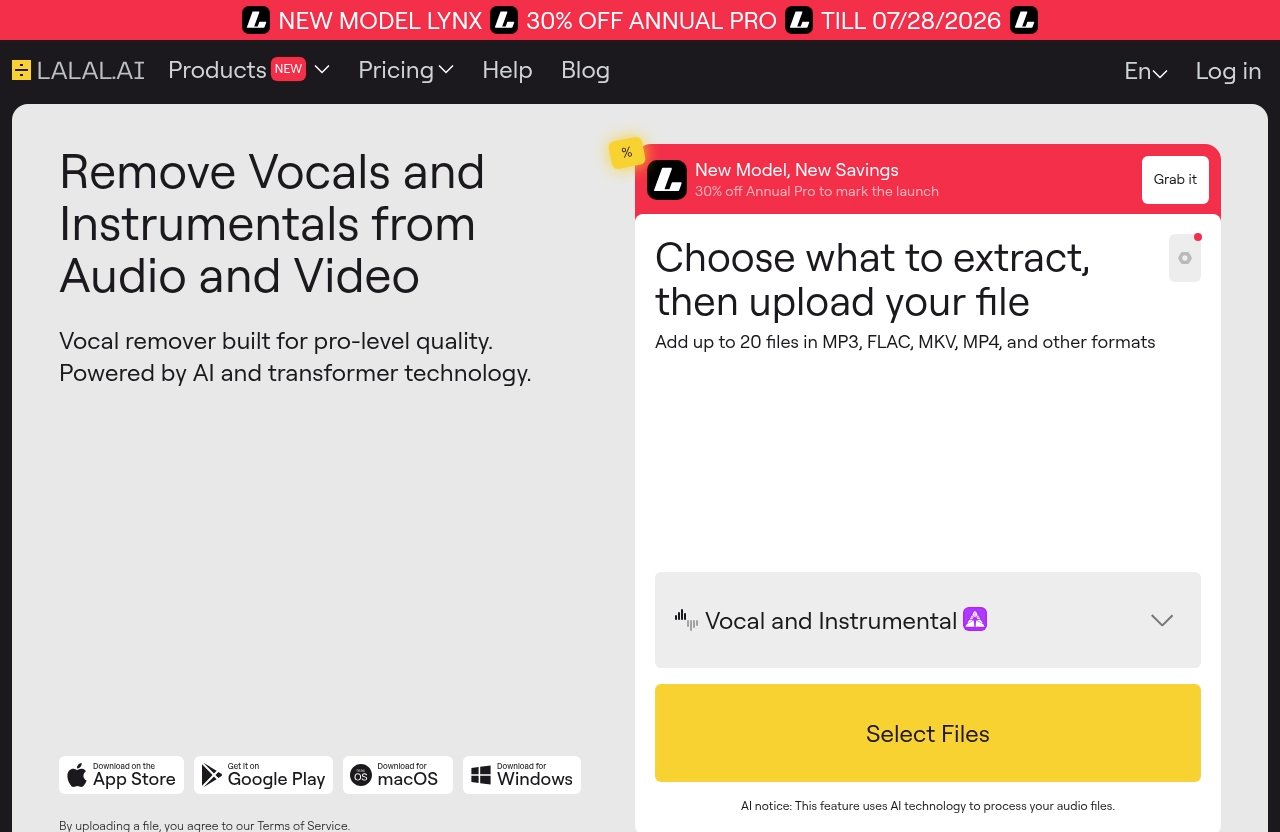
Go to LALAL.AI and open the upload area for vocal separation. If you are just testing the workflow, the web version is usually the simplest because you can upload a file and preview the separation without setting up a DAW session.
You can access LALAL.AI through this affiliate link if you want to support the site: try LALAL.AI here. Always check the official site for current product details, availability, and pricing.
If you see a promotional pricing banner, treat it as time-sensitive. The official page snippet shows a “30% OFF ANNUAL PRO till 07/28/2026” banner, but pricing and promotions can change, so verify everything on the official pricing page.
Step 2: Upload Your Song or Audio/Video File
Upload the song you want to process. LALAL.AI’s official homepage says it removes vocals and instrumentals from audio and video, so video files may be supported where applicable.
For the best chance of a clean acapella, upload your highest-quality source file. Avoid using a file that has already been processed multiple times, normalized aggressively, clipped, or downloaded from a low-quality stream.
If you are doing a remix, keep a copy of the original file in your project folder. This makes it easier to compare timing, tempo, and arrangement later.
Step 3: Choose Vocal Remover or Stem Splitter
Choose the product that matches your goal. If you want to remove vocals from song audio or separate the vocal from the instrumental, the Vocal Remover is the direct option.
If you want to split the song into multiple musical elements for a deeper remix workflow, use Stem Splitter. This is especially useful if you want to rebuild parts of the arrangement around the extracted vocal.
For most people searching how to use lalal.ai for acapellas, Vocal Remover is the most efficient first attempt. You can always try Stem Splitter later if you need additional control.
Step 4: Select the Stem Mode That Isolates Vocals
Select the option that isolates vocals. The wording may vary depending on the current interface, but your target is the vocal stem or voice-only result.
This is the point where you should be careful not to download the instrumental by mistake. If the tool gives you both sides of the separation, label them clearly after download.
If your project needs only the lead vocal, you may also want to explore LALAL.AI’s Lead/Back Splitter product separately. The official homepage lists it as a product, but your exact workflow depends on what the current interface offers.
Step 5: Process the Track and Preview the Result
Start the processing step and wait for the preview or result to generate. Once available, listen critically before downloading.
Do not judge the acapella only in solo. Solo playback helps you hear artifacts, but the real question is whether the vocal will work inside your remix, edit, or mashup.
Check three areas: verses, choruses, and breakdowns. A separation can sound great in sparse sections but struggle when the full instrumental enters.
Step 6: Download the Acapella Export
Download the vocal-only result once you are satisfied. This is your main clean acapella export, though you may still choose to clean it further in a DAW.
After download, import it into your production session and line it up with the original track. Check the timing at the start, middle, and end to make sure nothing has shifted in your workflow.
At this point, you have completed the basic process for how to use lalal.ai for acapellas: upload, choose vocal separation, process, preview, and download.
Official website · Latest pricing & offers
How to Get the Cleanest Possible Vocal Export
Getting a usable acapella is easy; getting the cleanest version takes a little more care. The key is to make decisions based on the song, not just follow one fixed setting every time.
When I approach AI vocal extraction, I treat the first pass as a diagnostic. I listen for bleed, reverb, and artifacts, then decide whether to retry, clean up, or use a different source.
Choose the Right Splitting Mode
Start with Vocal Remover when the goal is a simple vocal-only export. It is the cleanest workflow for most acapella tasks because it is directly aligned with separating vocals and instrumentals.
Use Stem Splitter when you need more control over the instrumental elements or want additional stems for remixing. The lalal.ai stem splitter can be useful if your creative goal extends beyond the vocal.
A simple rule: if you only need the singer, use Vocal Remover first. If you need to reconstruct the track, use Stem Splitter.
Use Enhanced Processing or Quality Settings When Available
If the current LALAL.AI interface offers quality-related options, preview different choices when available instead of assuming one setting is always best. Some tracks benefit from more aggressive isolation, while others sound more natural with less processing.
The cleanest acapella is not always the most separated one. Over-processing can reduce bleed but introduce watery artifacts or make consonants sound unstable.
When learning how to use lalal.ai for acapellas, train yourself to compare results in context. Drop the vocal over a beat or instrumental and decide which version actually sits better.
Try De-Echo / Noise-Reduction Tools if the Vocal Is Roomy or Noisy
If the vocal sounds washed out, roomy, or covered in ambience, LALAL.AI’s official product list includes Echo & Reverb Remover. That may help when the extracted vocal has too much space around it.
Voice Cleaner is also listed as an official product, which may be relevant when a vocal has noise or needs cleanup. Use these tools thoughtfully; too much cleanup can make the vocal feel unnatural.
A good workflow is to separate first, then clean only what is actually causing problems. Do not automatically process every acapella just because the tools are available.
Test Multiple Exports From the Same Track
If the first result is close but not perfect, test another export from a different source version or mode. For example, a lossless version may produce fewer artifacts than a compressed one.
You can also compare Vocal Remover and Stem Splitter outputs if the song is difficult. Sometimes one approach handles a dense chorus better than another.
Keep your tests organized so you do not lose track of the best version. A/B comparisons are much easier when each export has a clear name.
How to Handle Common Acapella Problems
Even with a strong vocal separation tool, acapella extraction is not magic. Finished songs are mixed as one stereo master, so the vocal overlaps with drums, instruments, effects, and mastering compression.
This section is where how to use lalal.ai for acapellas becomes more than just clicking upload. The best results come from knowing what went wrong and choosing the right fix.
Vocal Bleed From Drums, Guitars, or Synths
Bleed happens when parts of the instrumental remain in the vocal stem. The most common culprits are cymbals, snare hits, distorted guitars, bright synths, and anything that shares the same frequency range as the voice.
First, check whether the bleed is actually audible in your final mix. A tiny amount of hi-hat residue may disappear once the acapella is layered over a new instrumental.
If the bleed is distracting, try a better source file, a different separation mode, or light EQ in your DAW. Cutting harsh highs or low rumble can make the vocal feel cleaner without damaging the performance.
Echo, Reverb, and Room Sound in the Vocal
Reverb is difficult because it is often part of the vocal production. When a singer’s reverb tail blends with pads, guitars, or cymbals, the AI may leave some ambience in the acapella.
If the vocal sounds too roomy, try LALAL.AI’s Echo & Reverb Remover product, which is officially listed on the homepage. This can be useful when the acapella feels washed out or hard to place in a new mix.
You can also work creatively with the ambience. Sometimes adding your own reverb or delay on top of the vocal masks leftover room sound and makes it feel intentional.
Artifacts, Chirps, or Watery Texture
Artifacts are the strange digital sounds that can appear after separation. They may sound like chirps, bubbling, metallic edges, phasey movement, or a watery texture around syllables.
These problems usually come from hard source material: compressed files, dense choruses, stacked backing vocals, distorted masters, or instruments that overlap with the vocal. They are not always fully removable after the fact.
To reduce artifacts, try a cleaner source, compare separation modes, and avoid over-processing the result. Gentle EQ, de-essing, or noise reduction can help, but aggressive repair may make the vocal worse.
When to Retry With a Different Source File
Retry when the acapella has major bleed, obvious artifacts, unstable timing, or missing vocal phrases. Do not spend an hour fixing a bad extraction if a better source file might solve the problem in five minutes.
Look for an official high-quality download, a less compressed version, or a version without crowd noise. If the track has a radio edit, extended mix, or clean version, one may separate better than the others.
This is one of the most important lessons in how to use lalal.ai for acapellas: troubleshooting starts before processing. The input file is part of the result.
Exporting and Using Your Acapella Safely
Once you have a usable acapella, treat it like an important production asset. Good file management saves time when you are arranging, mixing, pitching, time-stretching, or revisiting the project later.
A clean workflow also helps you compare versions and avoid accidentally using the wrong export in a release or DJ set.
Best Export Formats and File Organization
Use the highest-quality download option available to you in the current LALAL.AI interface. If you are continuing production in a DAW, avoid unnecessary extra conversions.
Create a project folder with subfolders for the original song, LALAL.AI exports, edited acapellas, and final mix files. This keeps your remix workflow clean.
Example folder structure:
| Folder | What to Store |
|---|---|
01_original |
Original song or video file |
02_lalal_exports |
Raw vocal and instrumental exports |
03_editing |
Cleaned, trimmed, warped, or tuned acapella versions |
04_project |
DAW session files |
05_final |
Finished remix, mashup, or edit exports |
How to Name Versions for Remix Workflows
Use file names that tell you what the file is without opening it. Include the song title, source, tool, stem type, BPM if known, and version number.
For example:
Artist_Title_LALALAI_Vocal_Export_v01.wav
Artist_Title_LALALAI_Vocal_Cleaned_128BPM_v02.wav
If you are testing several passes while learning how to use lalal.ai for acapellas, clear naming matters. Otherwise, you may forget which file had the least bleed or best chorus.
Copyright and Usage Cautions for Creators
Only create and use acapellas from audio you have the rights to use, or where your use is permitted. This is especially important if you plan to upload, monetize, distribute, or perform the final work publicly.
AI separation does not automatically give you rights to a vocal recording, composition, or performance. Treat extracted vocals with the same care you would treat samples or remix stems.
This is not legal advice, but it is practical creator advice: if the project is public or commercial, confirm permissions before release.
When LALAL.AI Is the Right Choice vs When It Is Not
LALAL.AI is a strong option when you need a fast, practical way to separate vocals and instrumentals without building a complicated manual workflow. It is especially useful for creators who want to create acapella with lalal.ai and move quickly into arrangement or remixing.
It is not a guaranteed replacement for official studio stems. Like any AI separation tool, the final quality depends heavily on the source material and the complexity of the mix.
Best Use Cases for Clean Acapellas
LALAL.AI is a good fit for remix sketches, DJ edits, mashups, practice materials, vocal reference tracks, and content workflows where a usable vocal stem is enough.
It is also helpful when you need to work quickly. Instead of trying to manually EQ, phase-cancel, or edit around a finished master, you can process the track and evaluate the vocal in minutes.
For many creators searching how to use lalal.ai for acapellas, the best use case is speed plus flexibility. You get a vocal you can test immediately in a new musical context.
Cases Where Results May Disappoint
Results may fall short when the vocal is buried, heavily reverberated, doubled with wide backing vocals, or masked by distorted guitars and bright synths. Live recordings and noisy sources are also harder to separate cleanly.
Some artifacts may remain even after cleanup. If you need a flawless vocal for a commercial release, official stems or licensed acapellas are still the best option when available.
The goal is to be realistic. LALAL.AI can be very useful, but it cannot fully recreate information that is not clearly present in the source.
How It Compares to Manual Editing Workflows
Manual editing can still be useful for trimming silence, removing breaths, fading bleed, EQing harshness, and preparing the vocal for a mix. But manual techniques alone are usually slow when you are starting from a finished stereo master.
LALAL.AI gives you a faster first separation. Then your DAW becomes the place for polishing, timing, tuning, and creative processing.
The best workflow is usually hybrid: use LALAL.AI for the separation, then use your production tools to make the acapella fit the track. That is the practical answer to how to use lalal.ai for acapellas in a real remix workflow.
Official website · Latest pricing & offers
FAQ
How Do I Create an Acapella From a Song in LALAL.AI?
Upload your song, choose the vocal separation option, process the track, preview the result, and download the vocal-only export. For most users, the lalal.ai vocal remover is the simplest place to start.
Use the best-quality source file you can. That gives the AI more detail to work with and usually improves the final acapella.
Which LALAL.AI Mode Is Best for Acapellas?
Use Vocal Remover when you want a simple acapella from a finished song. It is the most direct option for separating vocals from instrumentals.
Use Stem Splitter when you need more control or want additional song elements for a remix. If you are unsure, start with Vocal Remover, then compare Stem Splitter if the track is difficult.
How Can I Make the Acapella Sound Cleaner?
Start with a high-quality source file, preferably one with a clear vocal and minimal distortion. Avoid low-bitrate files, noisy recordings, and tracks where the vocal is buried under dense instruments.
If the result has bleed or artifacts, try another source, compare modes, and use light cleanup in your DAW. The cleanest result often comes from better input rather than heavier processing.
Can LALAL.AI Remove Reverb or Echo From Vocals?
LALAL.AI’s official product list includes Echo & Reverb Remover, which may help when a vocal sounds roomy, washed out, or covered in ambience. This can be useful after you separate the vocal.
Use it carefully. Removing too much ambience can make a vocal sound unnatural, so compare the cleaned version in your actual mix.
Does LALAL.AI Work on Video Files Too?
Yes. LALAL.AI’s official homepage says it removes vocals and instrumentals from audio and video.
That means you may be able to upload supported video files where applicable, separate the vocal, and use the export in your creator workflow. Always check the current LALAL.AI interface and official help pages for supported file behavior.
Related Reading
- Lalal.AI Pricing Plans Explained in 2026
- Lalal.AI Free vs Paid: Which Is Better in 2026?
- Lalal.AI Karaoke: Create Clean Instrumental Tracks Fast in 2026